| Info |
|---|
|
Управление конфигурацией контроллеров ZK Teco будет рассматриваться на примере контроллера C3, управление конфигурацией других контроллеров ZK Teco происходит аналогично. |
Для управления конфигурацией контроллеров C3, C5 и InBio:
- Перейти на панель настройки соответствующего контроллера ZK Teco.
 Image Added
 - Нажать кнопку Запрос времени, чтобы запросить время контроллера ZK Teco, результат запроса будет отображен в интерфейсном окне Протокол событий.
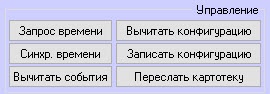 Image Added
- Нажать кнопку Синхр. времени, чтобы синхронизировать время контроллера ZK Teco со временем Сервера.
- Нажать кнопку Вычитать события, чтобы вычитать события из контроллера C3 или InBio. Кнопка отсутствует в настройках контроллера C5.
- Нажать кнопку Вычитать конфигурацию, чтобы вычитать конфигурацию из контроллера ZK Teco.
- Нажать кнопку Записать конфигурацию, чтобы записать конфигурацию в контроллер ZK Teco.
- Нажать кнопку Переслать картотеку для пересылки данных картотеки в контроллер C3 или InBio или кнопку Переслать данные картотеки
 Image Added для пересылки в контроллер C5.
 - Для сохранения изменений нажать кнопку Применить.
Управление конфигурацией контроллеров C3, C5 или InBio завершено
Managing of configuration for a ZK controller includes the following actions:
- From the Type data drop-down list select the type of data which is to be saved to the file (1).
Image Removed - Saving data of selected type to the file. Click the Save data to file button to perform this action (2). In the opened standard dialog window specify the path to the file in which data is to be saved.
- Reading the saved data from the file. Click the Send data from file button to perform this action (3). In the opened standard dialog window specify the path to file from which data is re be read.
- Synchronization time of a controller with the Intellect Server time. Click the Set current time button to perform this action (4).
- Forwarding configuration to the ZK controller. Click the Send configuration button to perform the forwarding (5).
- Deleting access settings from the ZK controller. Click the Cancel sending access settings to device button to perform this action (6).
- Forwarding access settings to the ZK controller. Click the Send access settings to device button to perform this action (7).
- Restarting the controller. Click the Reboot button to restart the controller (8).
Note.
The actions listed above are available for all controllers supported by the ACFA Intellect software: C3-100, C3-200 and C3-400.